How to Make Your Phone Less Distracting in 5 Steps
By Finn Albar

You can make your phone less distracting in five steps, starting with free settings your iPhone or Android phone already has. Next come a launcher or blocker, a device for one task, and only then a simpler phone.
This suits you if you want calls, maps, and messages to keep working while alerts and feeds get quieter. Each step hides more, costs more, and takes more away, so climb only when the step below stops holding.
The first three steps keep your phone and your number, and the first two can cost nothing. Start at step 1 and give each step a week before you add the next.
Five ways to make your phone less distracting, lightest first
Each step answers three questions: what it hides, what it costs, and what you give up.
- Change settings. This hides alerts and pauses chosen apps for set hours. It costs nothing, and you give up only alerts that arrive later.
- Add a launcher or a blocker. This hides the home screen, or locks chosen apps for a session. Costs run from free to a subscription or a small device, and every app stays installed.
- Move one task. This removes one reason to pick up the phone, such as the alarm or the camera. It costs one device per task, and that device does only its one job.
- Switch to a minimalist phone. This drops the browser and the app store but keeps tools such as directions and a camera. It costs a new phone, and most of your apps stay behind.
- Switch to a dumbphone. This keeps calls and texts and little else. It usually costs less than a minimalist phone, but it takes away the most.
The steps stack, too: a Focus for the evening works alongside an alarm clock in the bedroom.
Step 1: change the settings you already have
Settings come first because they are free, built in, and undo in seconds. They hide alerts and pause apps for the hours you choose, on iPhone and Android alike.
The catch is the exit. Any limit you set yourself, you can lift yourself in Settings, so the strongest setting here hands the code to someone else.
Batch or silence alerts
On iPhone, open Settings, tap Notifications, then Scheduled Summary. Turn it on, set one or more delivery times, and tap A to Z to choose the apps whose alerts can wait.
Android 14 and later put this job under Settings, then Modes. Pick a mode such as Do Not Disturb, and under Notification filters choose which people and apps can still reach you.
Leave anything time-sensitive out, such as bank alerts and rides. A late alert there costs more than an interruption.
Pause apps for set hours
A Focus decides who and what can notify you on iPhone. Open Settings, tap Focus, pick one such as Work or Personal, then choose the People and Apps to allow. Tap Add Schedule to start it at a time, at a place, or when you open an app.
A Focus can also switch to one Home Screen page you choose, but it does not block apps. Android’s Focus mode does: under Settings, Digital Wellbeing, Focus mode, pick the apps to pause. While it runs, you cannot use them or get their notifications.
Tap Set a schedule to start it on its own. Take a break unpauses the apps for a time you pick, and that button is the exit to watch. On Galaxy phones, Samsung has moved some Digital Wellbeing options to Modes and Routines in Settings.
Lock a limit behind a code someone else holds
On iOS 27, open Settings, tap Screen Time, then Time Allowances, and drag the slider to set a daily total. Tap a category such as Social Media to give it its own time.
Next, add your bank and authenticator apps under Screen Time, Always Allowed, because those work regardless of any allowance. Then tap Manage Screen Time, Lock Screen Time Settings, and let a partner or friend type the four-digit passcode.
Android 17 adds Settings, Parental controls, with a PIN for blocked apps, app limits, and downtime on the device itself. Let someone else set that PIN, too. You cannot turn it on with a work profile or private space, and without a recovery account, a forgotten PIN means a factory reset.
How to turn an iPhone into a dumbphone and how to turn an Android into a dumbphone walk through every setting. To read your usage report first, see how to check and limit screen time.
Climb to step 2 when you skip the Focus or ask for the code most days of the week.
Step 2: add a launcher or a blocker
If you keep lifting the limits from step 1, change what the phone shows or whether an app opens at all. A launcher hides the home screen, while a blocker stops or delays the app itself.
Both run on the phone you have and leave every app installed. They cost anything from nothing to a subscription or a small device, and the exit stays close: change the home app back, or turn the blocker off.
A launcher on Android
A minimalist launcher replaces the home screen with a plain list of the apps you choose, and hides the rest behind a swipe or a search. Install one from Google Play, then make it the default home app. On a Pixel, that is Settings, Apps, Default apps.
iPhone has no true launchers, so apps sold as minimalist launchers there are widget or shortcut home screens. The closest built-in match is the one Home Screen page a Focus switches to. The best minimalist launchers compares free and paid ones for Android.
A blocker app or a physical key
A blocker app adds friction before an app opens. Some, like one sec, show a short prompt such as a deep breath first, while a strict mode refuses to open the app until a session ends. The best app blockers compares what each free plan leaves out and how hard each is to switch off.
On a Pixel 6 or newer, the same kind of pause is built in, and Pause Point on Android covers how to set it up.
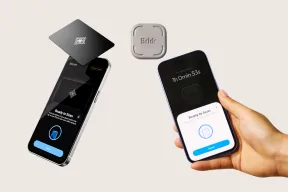
A physical blocker moves the off switch out of reach. With Brick, you pick the apps in its app, then tap the phone on the Brick to start a session, so the key can stay in another room. Brick vs Unpluq vs Bloom compares three of these keys on cost over two years and on emergency exits.
Climb when you uninstall the blocker or carry the key with you. If the pull is one job, such as the alarm, rather than an app, step 3 fits better.
Step 3: move one task to its own device
Some pickups start with a real job: the alarm, a photo, a song. Give that job its own device, and the phone loses one reason to be in your hand.
It costs one device per task, and each device does only its one job. A plain clock shows no calendar alerts, and a photo from a camera reaches friends only after you move it to a phone or a laptop.
- The alarm. An alarm clock lets the phone charge outside the bedroom, so the phone no longer ends your night or starts your morning. The best alarm clocks covers loud, vibrating, and app-free picks.
- Photos and music. A compact camera takes over photos, and an MP3 player takes over music and podcasts, and neither has a feed to scroll. The best compact cameras and the best MP3 players say what each one gives up.
- Calls for a child. If a child borrows your phone to call friends, a home phone can take that job. Landline for kids covers screen-free home phones that call only the numbers a parent approves, and that cannot text or leave the house.
Before the phone leaves the bedroom, let urgent calls through. On iPhone, open Settings, Focus, Sleep, then People, and allow repeated calls, which means two or more from the same person within 3 minutes.
Android 14 and later do this under Settings, Modes: pick a mode, and under Notification filters turn on Allow repeat callers. A second call from the same person within 15 minutes then rings.
Climb to a new phone when you still pick up the phone with no job in mind. A device moves one task, and it leaves the feeds where they were.
Step 4: switch to a minimalist phone
A minimalist phone runs its own pared-down system, with no web browser and no app store. The Light Phone III keeps directions, a camera, and a hotspot, and the Mudita Kompakt pairs similar tools with an E Ink screen.
It costs a new phone, and both cost more than most flips. You give up most apps, and neither of those two runs WhatsApp or a browser out of the box.
- List what you cannot lose. Write down your bank, messaging, sign-in, and ride apps. Then check each one against the phone’s tools before you buy.
- Check your carrier. The best phones without internet access has a section for each major US carrier, plus what to check before you port your number.
- Compare those two. Light Phone 3 vs Mudita Kompakt compares screens, maps, messaging, and returns. The Light Phone III review covers carriers and battery claims in more depth.
Climb to a dumbphone if you use little beyond calls and texts and want the simplest phone that does them.
Step 5: switch to a dumbphone
A dumbphone is a phone without an open app store, and most are keypad flips or bars that put calls and texts first. Some add maps, a camera, or a hotspot, and a few run WhatsApp, which dumbphones with WhatsApp covers.
Most cost less than a minimalist phone, but they take away the most. Plan the move, because your number, contacts, and sign-in codes all live on the old phone.
- Move sign-in codes first. A hardware security key can replace an authenticator app wherever an account accepts one. An Apple Account needs at least two FIDO Certified keys, and 2FA without a smartphone covers keys, code tokens, and text codes.
- Port your number last. How to switch to a dumbphone puts contacts, iMessage, and the port in order, so the old phone stays a fallback.
- Filter by what you need. The Dumbphone Finder, linked below, narrows current phones by form factor, network, WhatsApp, and the tools you need. The best dumbphones compares current phones sold in the US.
How to pick your step
Start with the problem, not the product. Find the line that sounds like you, and begin at that step.
- Alerts break up your day: Scheduled Summary on iPhone, or a mode’s Notification filters on Android (step 1).
- One or two apps pull you in: Focus mode or Time Allowances first, then a blocker if you tap past them (steps 1 and 2). On iPhone, how to block apps on iPhone compares the built-in ways.
- One feed inside an app pulls you in: YouTube’s Shorts feed limit, then a blocker that removes only Shorts on Android (steps 1 and 2). How to turn off YouTube Shorts covers both.
- The home screen itself pulls you in: a launcher on Android, or one Home Screen page tied to a Focus on iPhone (step 2).
- You undo every limit you set: a code someone else holds, or a physical key kept in another room (steps 1 and 2).
- The phone sits on your nightstand: an alarm clock, with repeat callers allowed first (step 3).
- You reach for the phone for photos or music: a compact camera or an MP3 player (step 3).
- You need calls, texts, maps, and a camera, and little else: a minimalist phone (step 4).
- You need calls and texts only: a dumbphone, or one of the phones that only call and text (step 5).
If two lines fit, start with the lower step. It costs less, and you can still climb next week.
When a dumbphone is not enough
A dumbphone falls short when one app you cannot drop keeps sending you back to the old phone. A bank, an employer, or a family group chat can decide that for you.
Stepping back down is fine, because every step here reverses. Two middle options keep the app and still cut the rest.
- A locked smartphone. The Wisephone II review covers one that keeps WhatsApp and maps but has no browser or email. It needs a monthly WiseOS plan.
- Two phones, one number. Keep the smartphone at home on steps 1 to 3, and carry the dumbphone on the days you can. Two phones, one number shows what call forwarding, a paired SIM, and Google Voice each carry.
Common questions
How do I make my phone boring?
On iPhone, remove the color under Settings, Accessibility, Display & Text Size, Color Filters, then Grayscale. On Android, Bedtime mode can turn the screen black and white on a schedule. Both undo in seconds, and how to make your phone black and white has the shortcuts and schedules for each.
Can I make my phone less distracting without deleting apps?
Yes. Settings, launchers, and blockers all leave every app installed: a Focus silences alerts, a time limit closes apps, and a launcher hides them from the home screen. Because each one comes off in Settings, a code someone else holds is what makes it stick.
What is the difference between a minimalist phone and a dumbphone?
Both drop the open app store. A minimalist phone such as the Light Phone III runs its own simple system with tools like directions and a camera. A dumbphone in the narrow sense is a keypad flip or bar that puts calls and texts first, and it usually costs less.
Do these steps work on both iPhone and Android?
Most do. Settings, blocker apps, single-task devices, and a new phone work whichever phone you have now. Launchers are the exception, because iPhone has no true launchers, so on iPhone use one Home Screen page that a Focus switches to.
Final thoughts
Start with step 1 tonight. A Focus or Focus mode for the evening costs nothing and undoes in a minute, and a code someone else holds is the next setting to add.
We would buy an alarm clock before a new phone, because it takes the phone out of the bedroom and changes nothing else. Switch phones only when the phone itself is the problem, and move your codes and your number in order when you do.