Make Your Phone Black and White on iPhone or Android
By Finn Albar
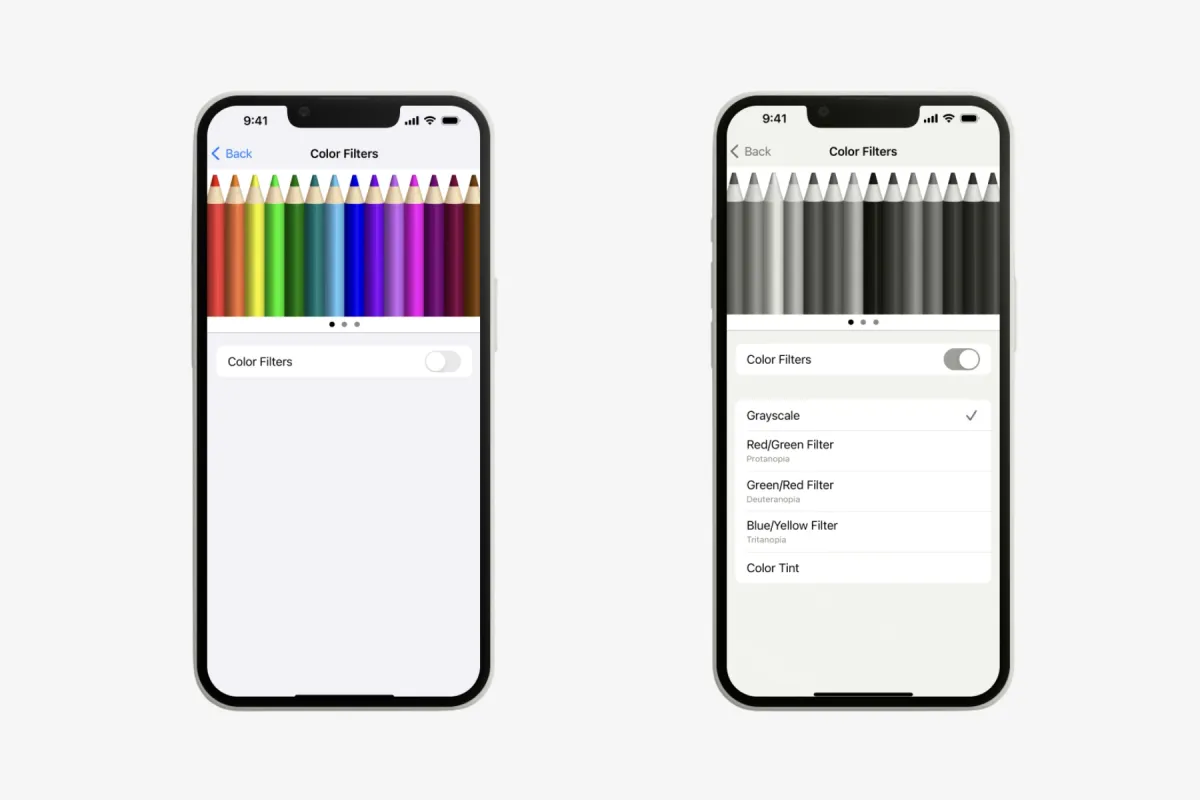
To make your phone black and white, turn on its grayscale setting. On an iPhone, Grayscale is a color filter in Accessibility settings. On Android, it sits in Color correction or in Bedtime mode.
Grayscale changes only how the screen looks. Every app and alert keeps working, and a triple-click or a tap brings the color back. If your phone turned gray on its own, look for a shortcut, a schedule, or a zoom filter.
This is the lightest step in how to make your phone less distracting, and it costs nothing. An E Ink phone is the stronger version of the same idea.
Turn on grayscale on an iPhone
Grayscale is one of the iPhone’s color filters, and the path is the same on iOS 26 and iOS 27.
- Open Settings, tap Accessibility, then Display & Text Size.
- Tap Color Filters and turn on Color Filters.
- Tap Grayscale.
The entire screen turns gray at once, from the Home Screen to every app. To undo it, turn off Color Filters in the same menu.
Grayscale sits next to filters for color blindness and a Color Tint option. Leave those off for this job, because they adjust or tint colors instead of removing them.
Night Shift does not undo it. When Night Shift turns on, it removes inverted colors and other color filters, but it keeps grayscale, so both can run in the evening.
On iOS 27, text size and bold text moved to a new Appearance menu in Settings. Color Filters stayed under Accessibility, so older screenshots of this path still match.
Switch grayscale on and off with a triple-click
A setting four menus deep is slow to switch. The Accessibility Shortcut puts it on a button instead.
- Open Settings, tap Accessibility, then Accessibility Shortcut.
- Select Color Filters, and only Color Filters.
With one feature selected, a triple-click turns grayscale on or off at once. Use the side button on an iPhone with Face ID, or the Home button on other models. If you select a second feature, the triple-click opens a menu instead.
Back Tap is the other quick switch. Open Settings, tap Accessibility, then Touch, then Back Tap, and choose Double Tap or Triple Tap. Its actions include accessibility features and shortcuts, so a tap on the back of the iPhone can do the same job.
Two features share the triple-click. Assistive Access uses it to exit, and while Assistive Access is active, the shortcut cannot turn on other features. Guided Access needs Accessibility Shortcut turned on in its own settings.
Control Center has a group of vision controls under Add a Control. A Color Filters control there is not documented for iOS 27, so we would set the triple-click first. It is the quickest way back to color for a photo or a map.
Put an iPhone in grayscale on a schedule
Neither a Focus nor Per-App Settings turns grayscale on by itself. For set hours, or for color in one app, a Shortcuts automation does the switching.
Build two shortcuts
In the Shortcuts app, make one shortcut that turns Color Filters on and a second that turns them off. Search the actions for Color Filters to find the one you need. Apple does not document the action’s exact name, so the wording on your phone may differ.
Name them plainly, such as Gray on and Gray off. Each automation runs one of them.
Add the automation on iOS 27 or iOS 26
iOS 27 changed where automations live: they now attach to a shortcut.
- iOS 27: open the shortcut, tap Edit, then Automation, and choose a trigger. To let it run without asking, open the shortcut’s Privacy settings in the editor and turn on Allow Running When Locked.
- iOS 26: tap Automation, tap the plus button if you already have one, then tap Create Personal Automation. Choose a trigger, tap Next, and pick your shortcut. To skip the prompt, open the automation, turn off Ask Before Running, and tap Don’t Ask.
Automations belong to the iPhone you made them on. They back up to iCloud, but they reach your other devices switched off.
Pick a trigger
- Time of Day: runs at a time you pick, daily, weekly, or monthly. It can also run at sunrise or sunset, up to four hours before or after.
- Sleep: runs when Bedtime Begins or at Waking Up. It needs a sleep schedule in the Health app, the same one a Sleep Focus follows.
- Focus: runs When Turning On or When Turning Off, so the screen goes gray whenever a Focus such as Work starts. Whether it can run without a prompt is not documented.
- App: Is Opened runs when you open or switch to an app, and Is Closed runs when you close it or switch away.
Time of Day and Sleep are the safest choices for a nightly schedule, because both can run without asking.
Keep color for Camera and Maps
The App trigger is how you keep color where it matters. Set one App automation for Camera with Is Opened that runs Gray off, and one with Is Closed that runs Gray on.
Repeat the pair for Maps or any app where color carries meaning. With the prompts turned off, the screen changes as you move between apps.
How to make an Android phone black and white
Android has two grayscale switches: Color correction for gray at any hour, and Bedtime mode for set hours. Menu names differ by maker: Pixels use Google’s names, and Galaxy phones use Samsung’s.
On a Pixel and most Android phones
- Open Settings, tap Accessibility, then Color and motion, then Color correction.
- Turn on Use color correction.
- Choose Grayscale as the correction mode.
This feature isn’t available on all devices, and some of these steps need Android 13 or later. If your phone has no Grayscale mode here, use Bedtime mode instead.
For a quick switch, set a color correction shortcut on the same screen. The choices are the accessibility button, holding both volume keys, a two-finger swipe up from the bottom, or a Quick Settings tile. Some of these need Android 12 or later.
On a Samsung Galaxy
- Open Settings, tap Accessibility, then Vision enhancements.
- Tap Color correction, called Color adjustment on some models.
- Turn it on and choose Grayscale.
To switch it faster, swipe down with two fingers to open Quick settings, tap the pencil icon, and add Color adjustment or Color correction. You can also put an Accessibility button on the screen under Settings, Accessibility, Advanced settings, Accessibility button.
Put an Android phone in grayscale for set hours
Bedtime mode can turn the screen gray on a schedule and bring color back when it ends. It is the Android match for an iPhone Sleep automation, with no shortcuts to build.
- Open Settings, tap Digital Wellbeing (Digital Wellbeing & parental controls on some phones), then Bedtime mode, then Bedtime routine.
- Choose Use a schedule and set the start time, end time, and days. Or choose Turn on while charging and set the After and Before times.
- In the screen options at bedtime, turn on Grayscale, which changes the screen to black and white.
On a Pixel with Android 13 or later, the screen options sit under Customize, then Screen options at bedtime. On Android 14 and later, Bedtime also appears under Settings, then Modes.
The same screen options can keep the screen dark, dim the wallpaper, and turn on Dark theme. Bedtime mode has a Quick Settings tile too, so it doubles as a gray switch on demand.
Sleep mode on a Galaxy
On a Galaxy, the same job falls to Sleep mode, formerly called Bedtime mode.
- Open Settings, tap Modes and Routines, then Sleep.
- Tap When to start this mode, then Sleep schedule. Set your usual sleep and wake-up times and tap Save.
- Among the additional settings, turn on Grayscale.
- Tap Done, then Turn on.
To stop it, tap Turn off at the top of the Sleep screen. A Grayscale option for other Galaxy modes is not documented, so Sleep mode is the dependable schedule.
What grayscale changes on the screen
Grayscale removes color from everything the screen shows. Red badges, app icons, photos, video, and maps all turn to shades of gray.
It leaves the phone itself alone. Every app still opens, every alert still arrives, and nothing is deleted or locked. It changes how the phone looks, not what it can do.
The cost is information that relies on color. A color-coded transit map, a chart, calendar colors, or a red error field can be harder to read. On an iPhone, switches lose their green, so turn on On/Off Labels in Display & Text Size to mark them with a line or a circle.
Whether photos and screenshots save in color while grayscale is on is not documented. If it matters, switch grayscale off before you take one, then switch it back.
We would treat grayscale as a filter you switch, not a setting you live inside. The triple-click or the shortcut is what makes it easy to keep.
Why is my phone suddenly black and white?
A phone that turns gray on its own has a setting switched on, often by a shortcut or a schedule. Check the likely causes for your phone in order.
On an iPhone
- A triple-click or Back Tap. If Color Filters is your Accessibility Shortcut, a stray triple-click of the side or Home button switches it. Triple-click again, and check Back Tap under Settings, Accessibility, Touch.
- A Shortcuts automation. Open Shortcuts, tap Automation, and look for a Sleep, Time of Day, Focus, or App trigger that turns Color Filters on.
- Zoom with a gray filter. If the screen is gray and zoomed in, or stays gray with Color Filters off, Zoom may be using its Grayscale filter. Go to Settings, Accessibility, Zoom, and set Zoom Filter to None, or turn Zoom off.
On a Pixel or other Android phone
- Bedtime mode. A Bedtime schedule turns grayscale on at set hours. If the phone goes gray only while it charges at night, the routine is set to Turn on while charging.
- The color correction shortcut. Holding both volume keys, or another accessibility shortcut, can switch Color correction on. Check Settings, Accessibility, Color and motion, Color correction.
On a Samsung Galaxy
- Sleep mode. Open Settings, tap Modes and Routines, then Sleep, then Other actions, and remove Grayscale.
- Color correction. Open Settings, tap Accessibility, then Vision enhancements, then Color correction, and turn it off.
- Bedtime mode on older Galaxy phones. Look under Digital Wellbeing and parental controls for Bedtime mode, and turn off Turn on as scheduled.
If only a few icons look gray, the screen is fine. On Android, an app timer that runs out closes the app and dims its icon until the timer resets.
When grayscale is not enough
Grayscale changes how the phone looks, not what it can do. Every app stays one triple-click away, and nothing stops you from opening it.
The next steps stay on the same phone and take apps away. On an iPhone, Screen Time with a passcode someone else holds, or Assistive Access, does that. How to turn an iPhone into a dumbphone sets them up in order.
On Android, Focus mode, Private space, and blocked apps behind a PIN on Android 17 do the same job. Turn an Android into a dumbphone walks through each one.
The stronger version of grayscale is a screen that is gray by design. An E Ink screen reflects light instead of shining it, and it redraws slowly, so feeds and video look choppy. The best E Ink phones compares the ones you can buy.
Not every E Ink phone removes apps, though. Bigme’s models keep the Play Store, so the screen slows apps rather than removing them. The Mudita Kompakt review covers the one that pairs E Ink with no app store.
Common questions
How do I turn off grayscale on my iPhone?
Triple-click the side or Home button if Color Filters is your Accessibility Shortcut. Otherwise, open Settings, tap Accessibility, then Display & Text Size, and turn off Color Filters. If the screen is still gray, set Zoom Filter to None under Accessibility, Zoom.
How do I turn off grayscale on Android?
Open Settings, tap Accessibility, then Color and motion, then Color correction, and turn off Use color correction. If the screen turns gray again at night, turn off Grayscale in Bedtime mode’s screen options. On a Galaxy, check Color correction under Vision enhancements and Grayscale in Sleep mode.
Can I make my phone black and white only at night?
Yes. On an iPhone, a Shortcuts automation with the Sleep or Time of Day trigger turns Color Filters on at night and off in the morning. On Android, turn on Grayscale in Bedtime mode, and on a Galaxy, in Sleep mode.
Can I keep color in some apps?
On an iPhone, yes, with two App automations: one turns Color Filters off when an app such as Camera opens, and one turns them back on when it closes. Android has no documented per-app grayscale, so switch with the color correction shortcut or the Bedtime mode tile.
Does grayscale stay on with Night Shift?
Yes. Night Shift removes inverted colors and the other color filters when it turns on, but it keeps grayscale. A Night Shift schedule will not bring color back to a gray screen.
Final thoughts
We would start with the switch, not the schedule: the triple-click on an iPhone, or the color correction shortcut on Android. Color is then one press away when a photo or a map needs it.
Add a schedule only if you keep forgetting to switch. Bedtime mode, Sleep mode, or a Sleep automation then does it for you every night.
If the phone pulls you back just as often in gray, the screen was not the problem. That is the point to try a stronger step, such as a phone whose screen is gray by design.