How to Block Apps on iPhone: 8 Built-In Ways Compared
By Finn Albar
You can block apps on iPhone with Screen Time, which puts the apps you pick behind a daily time limit or a schedule. It holds best when someone else knows the Screen Time passcode, because a limit you can change yourself is a reminder, not a block.
That suits you if one or two apps keep pulling you back and you want a free setting before a paid blocker. These settings sit above a limit you can dismiss and below a blocker app or a simpler phone. How to make your phone less distracting puts every step in order.
Built-in ways to block apps on iPhone, compared
The eight settings split on one question: does undoing it take a code someone else can hold? Screen Time with its passcode, Guided Access, and Assistive Access do. A Face ID lock, a Focus, and a Shortcuts automation only add a step, and you can undo each one yourself in a few taps.
| Method | What it blocks | How to undo it | What still gets through |
|---|---|---|---|
| Time limit | Apps after their daily time | Screen Time passcode, if set; you can ignore an App Limit by default | Always Allowed apps and people |
| Schedule | Apps outside the hours you allow | Screen Time passcode, if set; without Block at Downtime, Downtime only reminds you | Always Allowed apps; calls Communication Limits allow |
| Content & Privacy Restrictions | Built-in apps and features | Screen Time passcode, if set | Every app you did not restrict |
| Face ID lock or hide | Nothing; it adds a Face ID check | Your own face or passcode | You |
| Focus | Notifications only | Two taps in Control Center | The app itself, from App Library |
| Shortcuts automation | Nothing; it runs an action when the app opens | Turn the automation off | Everything |
| Guided Access | Every app but the one on screen | Guided Access passcode | Only that app; no Emergency Services or Crash Detection |
| Assistive Access | Every app you leave out | Assistive Access passcode | Calls and messages you allow; emergency calls by triple-click |
Two of them also change what works in an emergency. Guided Access turns off Emergency Services and Crash Detection while a session runs, and Assistive Access has no Emergency SOS via satellite.
We would read the undo column first, because the setting that holds is the one you cannot switch off alone. It also costs the most, because every change then goes through the person with the code.
Block an app with a Screen Time limit
Screen Time’s tools changed names with iOS 27, and the new ones need version 27 or later on all your Apple devices. Follow the steps for the menu your phone shows.
If Screen Time shows Time Allowances
Open Settings, tap Screen Time, then Time Allowances. Set a daily total for the whole phone, then tap a category such as Games and drag its slider lower. Apps in that category stop at the category’s allowance or the daily total, whichever comes first.
Time Allowances work by category. Whether one app can get its own allowance on your own iPhone is not documented, so set the category that holds your problem app low. To find which apps take your time first, see how to check and limit screen time.
If Screen Time shows App Limits
Open Settings, tap Screen Time, then App Limits, then Add Limit. Select only the app you want to block, tap Next, and set the time. By default, you can ignore a limit once you reach it, so on iOS 26 the firmer option is Block at Downtime on a schedule.
These settings act on whole apps. To keep YouTube but drop its Shorts feed, see how to turn off YouTube Shorts.
Block apps at certain times with a schedule
A schedule takes an app away for the hours it costs you most and leaves the rest of the day alone. First add the apps you cannot lose, such as Phone, Messages, and your bank, under Screen Time, then Always Allowed.
If Screen Time shows Screen Time Schedule
Tap Screen Time, then Screen Time Schedule, turn on Schedule, and tap Add Schedule. Pick the days, then set each time window’s name, times, and the Time Allowance categories it allows.
Turn on Match Screen Time Schedule under Time Allowances to apply your allowances inside those windows. What you see when you open an app outside its window is not documented for your own iPhone.
Calls and messages follow Communication Limits: tap Screen Time, then Communication Limits, then During Screen Time. Pick Everyone if you cannot miss a call from someone outside your contacts.
If Screen Time shows Downtime
Tap Screen Time, then Downtime, then Scheduled, and set the days and times. Set a Screen Time passcode, then turn on Block at Downtime. Restricted apps then dim with an hourglass and cannot open until downtime ends, while without it, you only see a reminder.
We would start with a schedule, paired with a passcode someone else holds. On iOS 26, Block at Downtime then makes it refuse the app rather than remind you.
Lock Screen Time with a passcode someone else holds
Every Screen Time setting above stays a reminder until a passcode locks it. On iOS 27, tap Screen Time, then Manage Screen Time, then Lock Screen Time Settings. On iOS 26, the same option sits at the bottom of the Screen Time screen.
Hand the phone to the person who will hold the code and let them type it. Screen Time Passcode Recovery then asks for an Apple Account, and with none set, nobody can reset a forgotten passcode, not even Apple. So have the code holder enter their own Apple Account, not yours.
The cost is that every change goes through that person, from a new Always Allowed app to a longer allowance on a busy day. If that is too much, keep the key yourself with the friction settings below.
Block built-in apps, downloads, and websites
Some Apple apps cannot be deleted, so Content & Privacy Restrictions blocks them instead. A built-in app you switch off leaves the Home Screen and stays installed until you switch it back on.
On iOS 27, tap Screen Time, then Content & Privacy Restrictions, then Other Features, and block what you do not want, such as AirDrop or Camera. Which other switches appear there for your own iPhone is not documented, so check whether Safari and app installs are among them.
On iOS 26, turn on Content & Privacy Restrictions, then use Allowed Apps & Features for built-in apps and iTunes & App Store Purchases for downloads. Web Content limits websites. Set a Screen Time passcode too, or anyone holding the phone can switch these back.
Add friction you control: Face ID, Focus, and Shortcuts
These three never say no to you, but each adds a step before an app you open on reflex. They suit a pause, not a block.
Lock or hide an app with Face ID
Touch and hold the app, tap Require Face ID, then tap Require Face ID again. Choose Hide and Require Face ID instead to move it to a Hidden folder at the bottom of App Library. Only apps you downloaded from the App Store can be hidden.
It is a privacy lock, not a block, because your own face or device passcode opens the app every time.
Silence an app with a Focus
Open Settings, tap Focus, pick a Focus, then tap Apps and add the app under Silence Notifications From. The app still opens from App Library, and ending a Focus takes two taps in Control Center. It fits an app you want quieter, not one you want shut.
Interrupt an app with a Shortcuts automation
An automation runs an action each time you open an app, such as Show Alert, which puts a message on screen. On iOS 27, open a shortcut, tap Edit, then Automation, choose App, pick the app, and choose Is Opened. On iOS 26, tap Automation, then the plus button, then Create Personal Automation, and choose App.
To run it without asking first on iOS 27, tap Edit, then the Info button, tap Privacy, and turn on Allow Running When Locked. On iOS 26, turn off Ask Before Running and tap Don’t Ask. The alert holds only as long as you leave the automation on.
Lock the iPhone to one app or a few
Guided Access and Assistive Access shut every app you leave out, and each sits behind its own passcode. They differ in how long you can live inside them.
Guided Access: one app, for a short session
Know the cost first: Emergency Services and Crash Detection do not work during a session.
- Open Settings, tap Accessibility, then Guided Access, and turn it on.
- Tap Passcode Settings, then Set Guided Access Passcode.
- Open the app you want to keep, then start Guided Access from Control Center or the Accessibility Shortcut.
To end a session, triple-click the side or Home button and enter the code. Because emergency calls stop working, we would use it only at home, an hour at a time.
Assistive Access: a few apps, all day
Assistive Access replaces the whole iPhone screen with the few apps you add, and the App Store cannot be one of them. A triple-click still places an emergency call without the passcode, but Emergency SOS via satellite does not work until you exit. How to turn an iPhone into a dumbphone walks through the setup.
When built-in blocking is not enough
Built-in blocks come undone in familiar ways: the code holder gives in, you delete the automation, or you exit Guided Access. If you ask for the passcode most days, move up one step.
- A blocker app with a strict mode refuses an app until a session ends. The best app blockers compares how hard each one is to switch off.
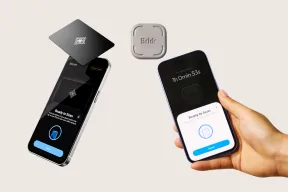
- A physical key kept in another room moves the off switch out of reach. Brick vs Unpluq vs Bloom compares three of them on cost and emergency exits.
- A phone with no open app store takes the question away. The best dumbphones compares current phones sold in the US.
Common questions
How do I block apps on iPhone without Screen Time?
Lock or hide the app with Face ID, add a Shortcuts automation that runs when it opens, or keep the phone in one other app with Guided Access. Of these, only Guided Access needs a code you can hand to someone else.
How do I block an app on my iPhone permanently?
Delete it: touch and hold the app, tap Remove App, then Delete App. That removes the app and its data from the iPhone, but data stored in iCloud stays. On iOS 26, restrict redownloads under iTunes & App Store Purchases.
Why does Screen Time not block an app?
Always Allowed apps stay open through any limit or schedule, so check that list first. Turning off App & Website Activity also switches off Downtime and App Limits. On iOS 26, a limit without a passcode is a reminder you can ignore by default.
How do I block an app on my child’s iPhone?
With every device in the family on version 27 or later, open Settings, tap Family, then your child’s name, then Apps & Websites. Pick the app and tap Block App, and it stays installed but your child cannot use it. How to set up a phone for a child covers the rest of a child’s settings.
Final thoughts
Start with a schedule for the hours an app costs you most. Then give the Screen Time passcode to someone else, with their Apple Account set for recovery.
Keep Face ID, Focus, and Shortcuts for the nudges you control, and use Guided Access an hour at a time. If you keep asking for the code, the next step is a blocker app or a phone without an app store.