Pause Point on Android: Which Pixels Have It and Setup
By Finn Albar
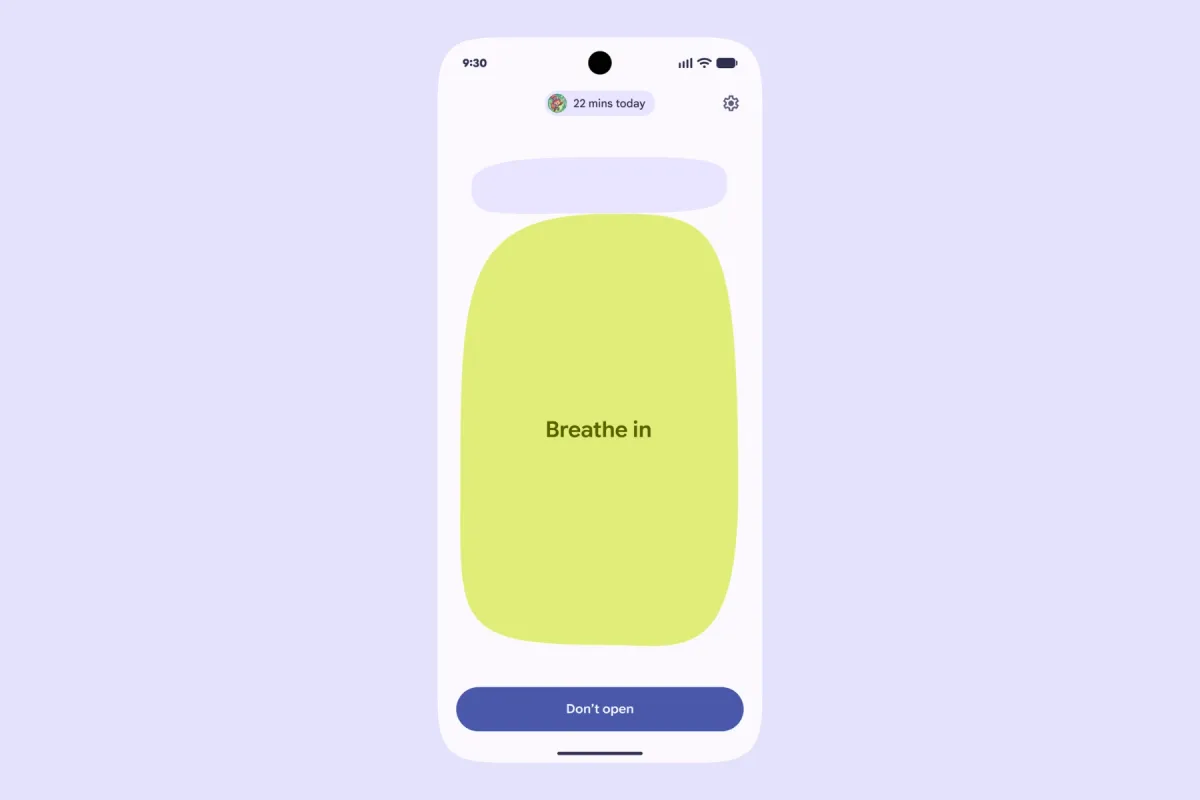
Pause Point on Android puts a 10-second pause in front of the apps you pick. It is a Pixel setting, rolling out to Pixel 6 and newer phones with the September 2026 update.
It suits you if you open a few apps out of habit but still want them. After the pause, the app opens if you choose, so it slows you down without locking anything.
On the ladder in how to make your phone less distracting, it is the lightest built-in step. App timers and a PIN someone else holds sit above it.
What Pause Point does before an app opens
When you open one of the apps you picked, Pause Point gives you 10 seconds to ask why you opened it. During that pause, you can:
- do a short breathing exercise
- set a timer, so the visit has an end
- look at a few of your favorite photos
- jump to a suggested app instead, such as an audiobook
You choose which kinds of prompts appear when you set it up. After the pause, you decide whether to continue to the app or put the phone down.
That makes it a delay, not a block. It acts every time you open the app, at the moment the habit starts, while App timers act only once the day’s time runs out.
Whether you can change the 10 seconds is not documented. Neither is whether the pause appears when you open an app from a notification.
Which Pixel phones have Pause Point
Pause Point first shipped on the Pixel 11 series. With the September 2026 Pixel Drop, it is rolling out to Pixel 6 and newer phones. The device table in that announcement ticks every Pixel phone from the Pixel 6 series to the Pixel 11 series:
- Pixel 11 series: Pixel 11, 11 Pro, 11 Pro XL, and 11 Pro Fold
- Pixel 10 series: Pixel 10, 10 Pro, 10 Pro XL, 10 Pro Fold, and 10a
- Pixel 9 series: Pixel 9, 9 Pro, 9 Pro XL, 9 Pro Fold, and 9a
- Pixel 8 series: Pixel 8, 8 Pro, and 8a
- Pixel 7 series and Fold: Pixel 7, 7 Pro, 7a, and Pixel Fold
- Pixel 6 series: Pixel 6, 6 Pro, and 6a
The Pixel Tablet is not ticked. Pixel 5a and older phones are not in the table either, and they no longer get Android version updates.
The update arrives in phases over several weeks, depending on your carrier and device. Availability can also vary by country and language.
Many news stories call Pause Point a Pixel 11 exclusive. That was true until the September 2026 update, so an older article is no reason to give up on a Pixel 8 or 9.
How to set up Pause Point
Everything happens in Digital Wellbeing, inside Settings. Some steps vary by device.
Turn it on and pick the apps
- Open Settings and tap Digital Wellbeing.
- Tap Ways to disconnect, then Pause Point.
- Turn Pause Point on.
- Choose the apps and the kinds of prompts from the options on screen.
Start with two or three apps you open without meaning to, such as a social feed or a video app. We would leave out Phone, Messages, Maps, your bank, and your authenticator app, because a 10-second wait there costs you at the wrong moment.
To see which apps you open most, tap the chart in Digital Wellbeing and check Times opened. How to check and limit screen time on iPhone and Android shows how to read the rest of that report.
If Pause Point is missing
- Open Settings, tap System, then Software update, and install any update waiting there.
- Open the Play Store and update your apps.
You also get a notification once the system update is ready. If your Pixel is a 6 or newer and Pause Point is still missing, the rollout may not have reached it yet. Check again in a week before you pay for an app.
Digital Wellbeing lives in Settings. To add it to your app list, tap Digital Wellbeing and turn on Show icon in the app list.
Turn Pause Point off
Go back to Settings, Digital Wellbeing, Ways to disconnect, Pause Point, and turn it off. Turning it off takes a phone restart, so switching it off becomes a decision rather than a reflex.
How the restart is triggered is not documented, and neither is whether changing the app list needs one. Turn it off when a restart is convenient, not in the middle of a call.
Pause Point vs App timers and Focus mode
Pixel phones have three other Digital Wellbeing tools that limit apps. Each acts at a different moment, and each has its own way around it.
| Tool | When it acts | How you get past it |
|---|---|---|
| Pause Point | Each time you open a chosen app, for 10 seconds | Continue after the pause, or restart the phone to turn it off |
| App timers | When the day’s time runs out: the app closes and its icon dims until midnight | Delete the timer |
| Focus mode | During the hours you set: you cannot use the apps and get no notifications from them | Tap Take a break and choose a time |
| App limits PIN | When you try to change a timer, it asks for a 4-digit PIN | Only the person who knows the PIN |
Pause Point sits between a timer you can delete and a lock you cannot open. It never stops you, but it makes every open a choice.
App timers suit one app that takes hours, because the limit holds for the rest of the day. Focus mode suits set hours, such as weekday evenings, and Set a schedule starts it on its own.
We would pair them. Put Pause Point on the two or three apps you open by habit. Then give a timer to the one app that eats your evenings, and schedule Focus mode for the hours you want quiet.
Pause Point on Samsung, other Android phones, and iPhone
Pause Point is a setting inside Pixel’s Digital Wellbeing, not an app in Google Play. Galaxy phones and other Android phones do not have it, and neither does iPhone.
On a Galaxy, the nearest built-in tools are App timers in Digital Wellbeing and the modes in Modes and Routines, where some Digital Wellbeing options now sit. How to turn an Android into a dumbphone has the Galaxy steps for both.
For the pause itself on any phone, a blocker app does the job. Both one sec and ScreenZen put a short pause before the apps you pick, on Android and iPhone. The best app blockers compares their free plans and how hard each is to switch off.
On iPhone, the built-in limits live in Screen Time. On iOS 27, Time Allowances balance time across entertainment, games, and social media apps. How to block apps on iPhone compares the built-in ways to stop an app opening.
On a phone without Pause Point, we would try a free blocker’s pause before paying for one.
When Pause Point is not enough
A pause you can tap through is a reminder, not a limit. If you continue past every pause, or restart the phone to switch it off, move up one step.
On a Pixel, that step is an App limits PIN that someone else sets. Under Settings, Digital Wellbeing, App limits, App limits PIN, they turn on PIN for app time limits and enter a 4-digit PIN. An app timer set to zero then blocks that app, and only they can lift it.
If that PIN gets lifted too, the phone is the next thing to change. The best dumbphones leave out the open app store, so there is nothing to pause.
Common questions
Is Pause Point only on the Pixel 11?
No. It started on the Pixel 11 series and is rolling out to Pixel 6 and newer phones with the September 2026 update, in phases by carrier and device. If you cannot find it, install the latest system update and update your apps.
Does Samsung have Pause Point?
No. Galaxy phones have App timers in Digital Wellbeing, and some of its options now sit in Modes and Routines. For a pause before an app opens, add a blocker app.
Is there a Pause Point app I can download?
No. Pause Point is a setting in Digital Wellbeing on Pixel phones, not a separate app in Google Play. On other phones, one sec and ScreenZen are the closest apps, and both run on Android and iPhone.
Does iPhone have Pause Point?
No. The closest built-in tool is Screen Time, where Time Allowances on iOS 27 balance time across entertainment, games, and social media apps. For a pause before an app opens, use a blocker app.
Final thoughts
Turn Pause Point on for two or three apps and leave it for a week. It costs nothing, and turning it off takes a restart.
If you keep continuing past the pause, add an App limits PIN that someone else sets. If that does not hold either, the next thing to change is the phone, not the settings.