The “Do Not Disturb” Masterclass: How to Configure Focus Modes in 2026

We have become Pavlov’s dogs.
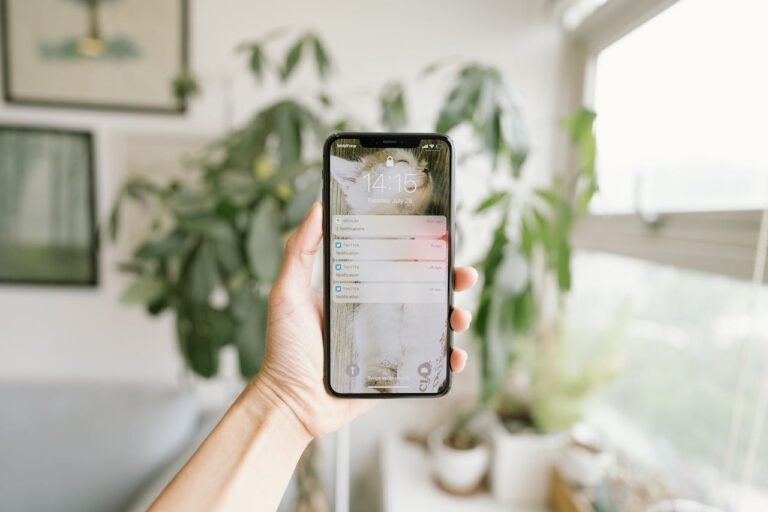
A chime sounds, and we salivate for information. A buzz vibrates in our pocket, and our cortisol spikes. A screen lights up across the room, and our conversation trails off as our eyes dart toward the glow.
We are living in a state of constant, low-level interruption.
Research shows that it takes about 23 minutes to refocus after a distraction. If your phone buzzes every 10 minutes, you are mathematically incapable of doing deep work. You are perpetually skimming the surface of your own intelligence.
But here is the good news: Your phone has a built-in bodyguard. It’s called Focus Mode (or “Do Not Disturb”).
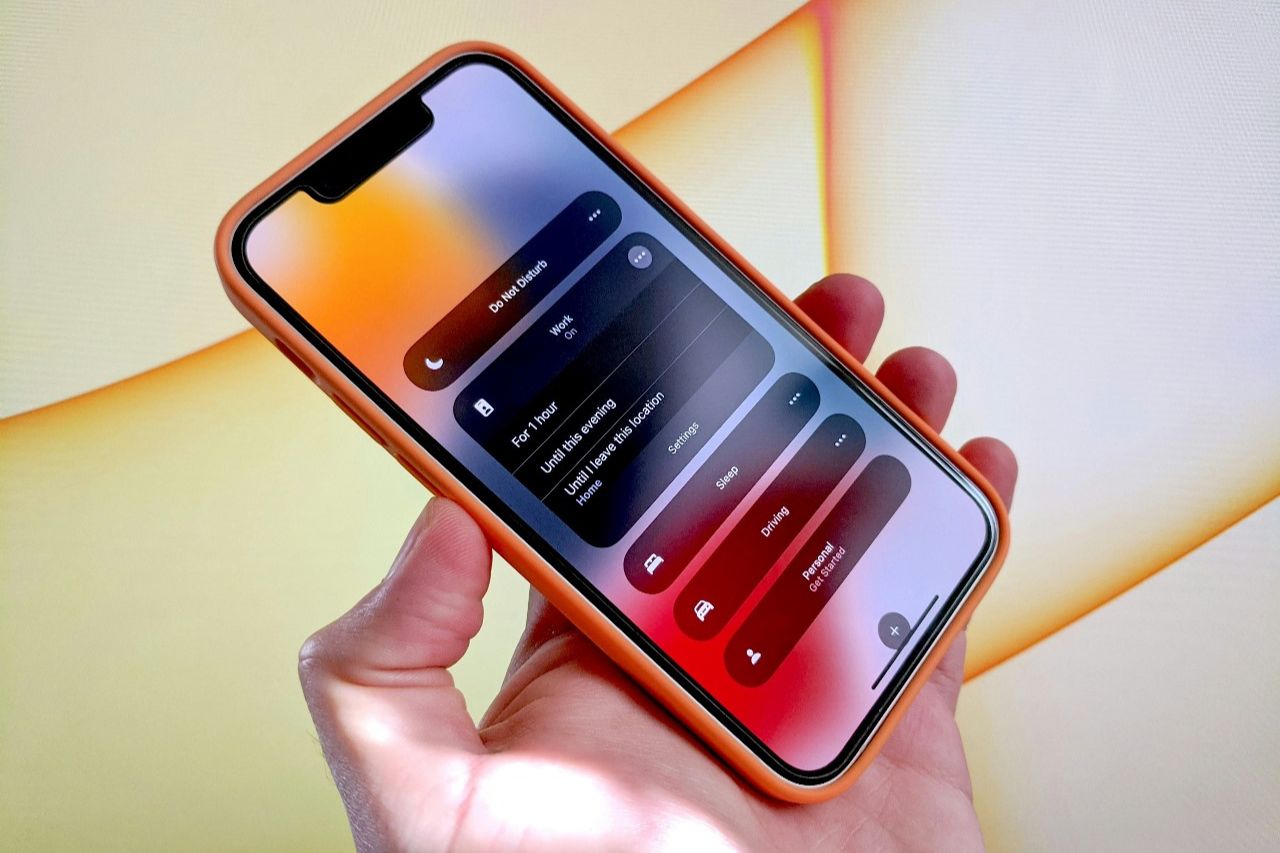
Most people treat “Do Not Disturb” like a blunt instrument—a simple on/off switch they only use when sleeping. But in 2026, Focus Modes are surgical tools. You can program your phone to automatically adapt to your life, allowing specific people and apps through only when appropriate.
Here is how to set up the ultimate “Digital Fortress” on your iPhone (and Android) to reclaim your attention span.
The Philosophy: Context is King
The problem with the old “Do Not Disturb” was that it was all-or-nothing. You missed spam calls, but you also missed your wife calling about an emergency.
Modern Focus Modes are based on Context.
You are a different person at 10 AM (Employee) than you are at 7 PM (Parent/Partner). Your phone should reflect that. We are going to set up three distinct profiles: Work, Personal, and Sleep.
1. The “Deep Work” Mode (9 AM – 5 PM)
The goal here is to eliminate distractions while keeping professional channels open.
How to set it up (iOS):
- Go to Settings > Focus.
- Tap Work (or create a new one).
- Allowed People: Select only your boss, immediate team, or key clients. Everyone else goes to voicemail.
- Allowed Apps: Select Slack, Email, or Teams. Do not allow Instagram, WhatsApp, or News apps.
- Screens: This is the pro tip. You can choose a specific Home Screen page to show. Pick a page that only has your productivity tools. Hide the page with the games and social media.
The Trigger:
Set a schedule. Tap “Add Schedule” -> Time. Set it to 9:00 AM to 5:00 PM, Monday to Friday. Now, when you walk into the office (or sit at your desk), your phone automatically puts on its suit and tie.
2. The “Personal” Mode (5 PM – 9 PM)
This is the most important mode for work-life balance. The goal is to stop your boss from emailing you during dinner.
How to set it up:
- Go to Settings > Focus.
- Tap Personal.
- Allowed People: Select your friends and family.
- Allowed Apps: Select WhatsApp, Maps, Uber, Spotify, Camera.
- Silence Notifications From: Select Slack, Outlook, Teams, and Zoom.
The Trigger:
Set this to activate automatically at 5:01 PM. The psychological relief of knowing that work emails physically cannot buzz your phone in the evening is immense. It allows you to be present with your family.
3. The “Sleep” Mode (10 PM – 7 AM)
This protects your melatonin.
How to set it up:
- Go to Settings > Focus > Sleep.
- Allowed People: Only your “Emergency Contacts” (Partner, Parents, Children).
- Allowed Apps: None. Or maybe a meditation app.
- Options: Turn on “Sleep Screen.” This dims the lock screen and hides all notifications until you wake up.
(Pro Tip: Even better than Sleep Mode is charging your phone in the kitchen and using a dedicated Alarm Clock so you never see the screen at all).
The “Emergency” Loophole
“But Finn, what if there is a real emergency?”
This fear keeps millions of people from using Do Not Disturb. Apple and Android have solved this.
- Repeated Calls: In the Focus settings, toggle on “Allow Repeated Calls.” If someone calls you twice within three minutes, the phone assumes it is urgent and lets the ring through.
- Emergency Bypass: Go to your Contacts app. Tap on your partner or parent. Tap Edit > Ringtone. Toggle on “Emergency Bypass.” Their calls will always ring, even if your phone is on silent or Focus mode.
Now you have no excuse. You are reachable for emergencies, but unreachable for nonsense.
Combining with Other Tools
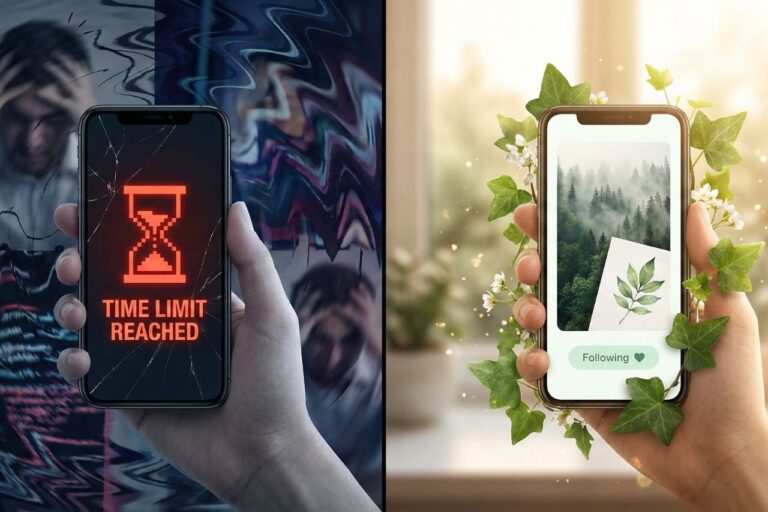
Focus Modes hide the notifications, but they don’t lock the apps. If you have a habit of mindlessly opening Instagram even without a notification, you need to layer your defenses.
- Visual: Use the Grayscale Hack to make the apps look boring.
- Friction: Use an App Blocker like Opal to physically lock you out of social media during your “Deep Work” hours.
Automate Your Willpower
The beauty of this system is that you set it up once, and it runs forever. You don’t have to use willpower to ignore a text message; your phone ignores it for you.
By compartmentalizing your digital life, you are training your brain to be in one mode at a time. When you work, you work. When you rest, you rest.
Stop letting the world barge into your pocket whenever it wants. Put up a “Do Not Disturb” sign, and reclaim your peace.