How to Analyze Your “Screen Time” Stats (Without Crying)

It happens every Sunday morning.
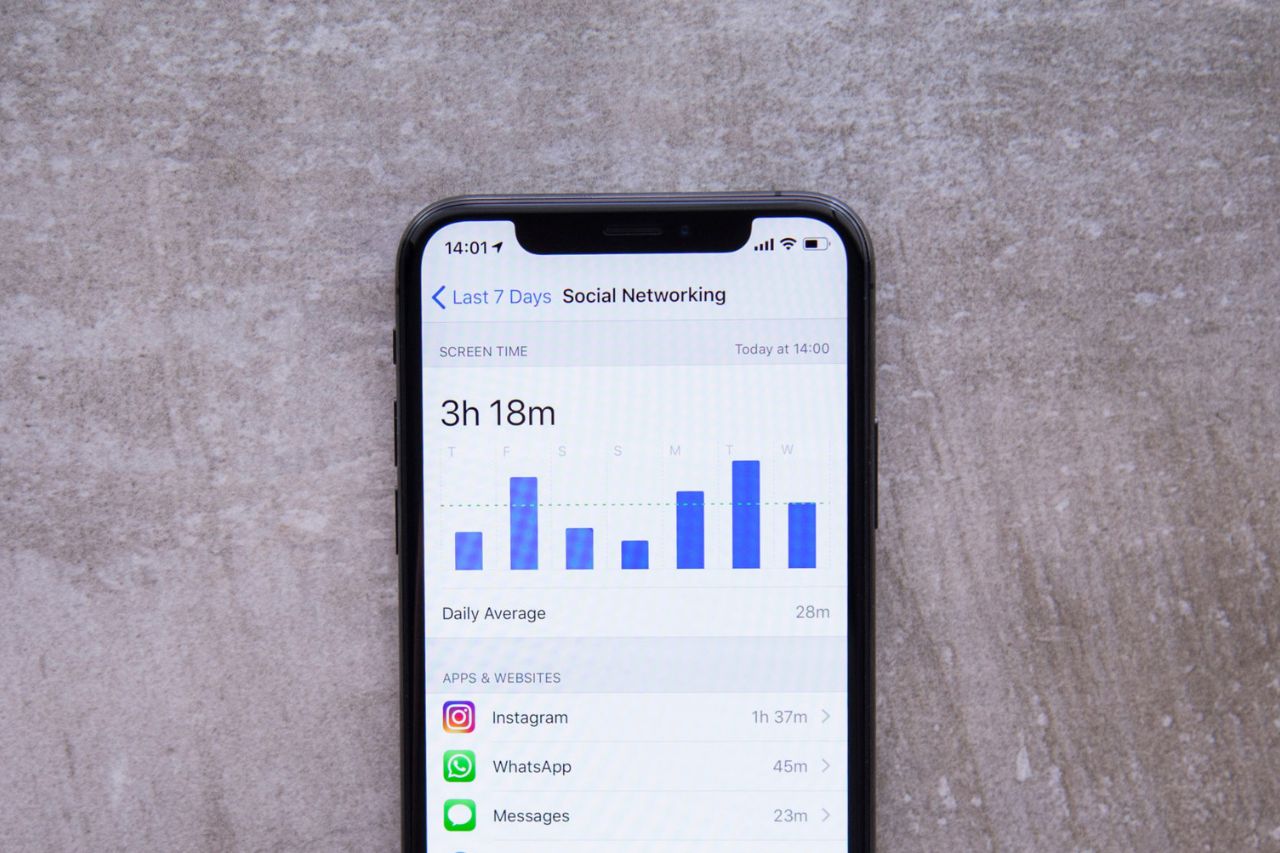
A notification pops up on your screen: “Your Weekly Screen Time Report is ready.”
You swipe it open. You see the number. Maybe it says “5 hours 20 minutes daily average.” Maybe it says “Up 18% from last week.”
You feel a pang of guilt. You think, “I am wasting my life.” And then, because that feeling is uncomfortable, you close the notification and go back to scrolling.
We treat Screen Time data like a credit card bill we can’t afford to pay—we know it’s bad, so we try not to look at the details.
But data is not your enemy. Data is feedback.
In 2026, Apple and Google give us incredible forensic tools to understand our digital habits, but most people only look at the topline number. That is a mistake.
If you want to reclaim your time, you need to stop judging yourself and start analyzing your data like a scientist. Here is how to read your stats without crying, and what numbers actually matter.
The Myth of “Total Time”
The big number at the top (e.g., “6 Hours Daily”) is misleading. Not all screen time is created equal.
If you spent 3 hours reading a complex non-fiction book on your Kindle app, or 2 hours editing a video for work, that is Productive Time. If you spent 3 hours doom-scrolling TikTok reels, that is Passive Consumption.
Lumping them together is like saying eating 2,000 calories of broccoli is the same as eating 2,000 calories of cake.
The Fix:
Go into your settings (Settings > Screen Time on iOS, or Digital Wellbeing on Android). Tap “See All Activity.” Look at the categories. If “Productivity & Finance” or “Reading” is high, give yourself a pat on the back. If “Social” and “Entertainment” are dominating, that is where we need to focus.
The Most Important Metric: “Pickups” (Unlocks)
Scroll down past the graph. You will find a section called “Pickups” (iOS) or “Unlocks” (Android).
This is the most important number on your phone.
“Total Time” measures consumption. “Pickups” measures Compulsion.
If you picked up your phone 120 times in a day, that means you interrupted your life 120 times. Assuming you are awake for 16 hours, that is once every 8 minutes.
This number reveals your twitch. It reveals how often you reach for your pocket out of boredom, anxiety, or habit. Even if you only look for 30 seconds, the act of picking it up breaks your focus.
The Goal: Try to keep your pickups under 50 per day. If you can get it under 30, you have reached digital nirvana.
The Trigger: “Notifications”
Below Pickups, you will see “Notifications.” This tells you who is interrupting you.
Look at the top 3 apps on this list. Is it WhatsApp? Email? Instagram?
If Instagram sent you 40 notifications, and you had 40 pickups, there is a direct correlation. You are being summoned like a servant.
The Fix:
Use this data to be ruthless. If an app is in your “Top 5 Notifications” list but isn’t critical for your job or family safety, turn its notifications off immediately. (Check out our Focus Mode Guide for a step-by-step tutorial on how to automate this).
Action Plan: How to use “App Limits” Effectively
Both iOS and Android allow you to set time limits for specific apps. Most people set them, hit the limit, and then immediately tap “Ignore for 15 minutes.”
We have all done it.
The problem is that the limit is too soft. Here is how to make it stick:
- Be Realistic: Don’t set your Instagram limit to 15 minutes if you currently use it for 2 hours. You will fail. Set it to 1 hour 30 minutes. Then next week, 1 hour. Taper down slowly.
- Combine with Grayscale: It is much easier to respect a time limit when the content looks boring. Turn your screen Black and White to reduce the urge to hit “Ignore.”
- Password Protect It: On iOS, you can set a “Screen Time Passcode.” Ask a friend or partner to set the code for you. When the time is up, you literally cannot get back in without asking them. It’s extreme, but effective.
Awareness is the First Step
You cannot fix a problem you cannot measure.
Instead of fearing your Sunday report, treat it as a weekly audit.
- Did my Pickups go down?
- Did my Social Media time decrease?
- Did my Creative/Reading time increase?
If the numbers are bad, don’t beat yourself up. Just adjust your settings, tighten your App Blockers, and try again next week.
Progress, not perfection.